Another week, another blog! This week, we will cover something very basic. If you are a BI developer and work with Power BI, you will be familiar with DAX functions - Values, Value, and Distinct. This blog will cover all the common pitfalls and practical use cases for each of them.
Before we start, let's start with a small question. Are distinct and unique means the same? For a very long time, I used to think they were just synonyms, but they aren't. Wait what?? How are they different? Okay, let's understand it. Distinct means each value in a specific column appeared once. In other words, you can say to count all values as 1. If you are a fan of SQL, then you already know that distinct is used to remove duplicates. While unique means you only consider the values that aren't repeated in a column. There's a subtle difference between the 2 that gets ignored easily.
Okay, since you are aware of the difference between distinct and unique, we can now start the real action. To do so, I have created a manual table in the query editor that contains order values associated with the different classes. For the demo, we have kept a few rows empty.
Let's start with the Values function in DAX. Values allow us to get the distinct values for a specific column or a table, depending on the argument you have passed, keeping the filter context. Okay, we will be creating another column in the dummy table using Values.
Class values =
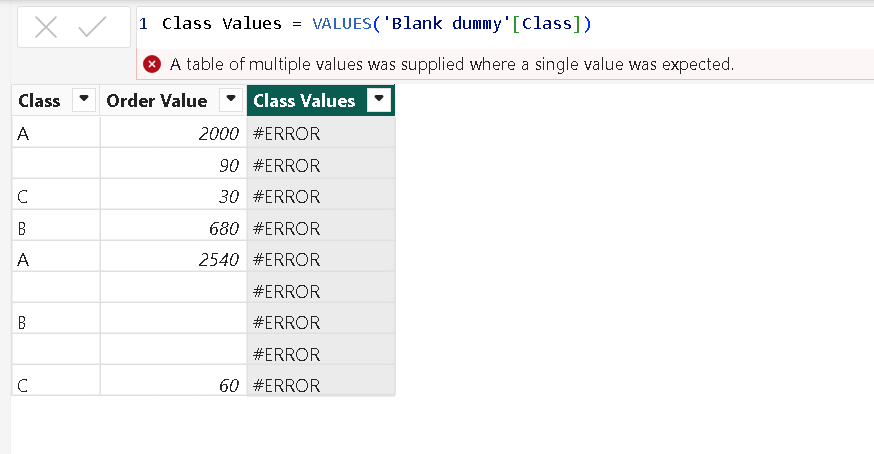
    VALUES ( 'Blank dummy'[Class] )
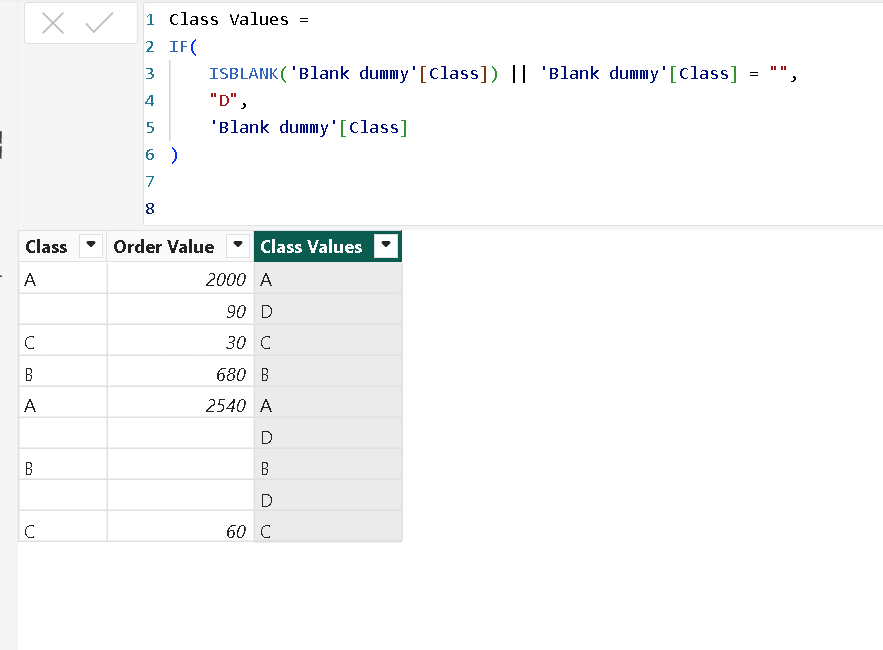
Oh ERROR! But why? To debug this, we need to understand the behaviour of Values. It only returns a table of distinct values and not a single value. What is the correct approach then? We can try this DAX for the calculated column. With this measure, we are making things simpler and asking to populate the Class Values column with Class, and in case of blanks and empty strings, populate it with class D.
We have covered both scenarios by using 2 conditions with IF. ISBlank will tackle the actual blanks, meaning no values are available for that cell, while there are cases like we have of false blanks, meaning nothing is typed in, and gives us a 0-length string.
Class Values =
  IF(
      ISBLANK('Blank dummy'[Class]) || 'Blank dummy'[Class] = "",
      "D",
      'Blank dummy'[Class]
  )
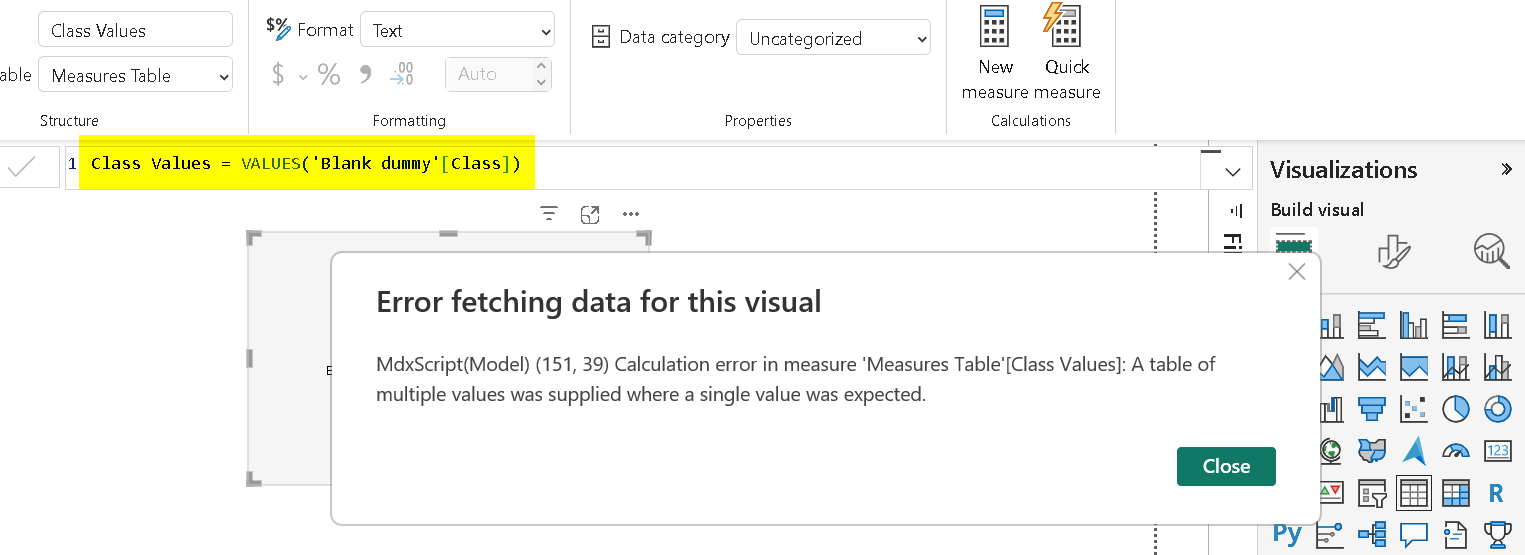
Now we have learnt a lesson of not using Values in a calculated column. Let's try to use the Values function with a measure.
Class values =
VALUES ( 'Blank dummy'[Class] )
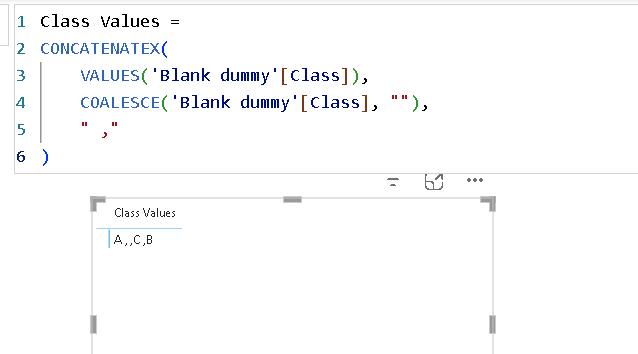
Oh, not again! Okay, let's figure this out. By using this measure, we are asking to return a table as a scalar value, which is not allowed for a measure. To correct this, we can use the following measure. We are asking to return a list of classes with a comma separator. Coalesce allows us to tackle the blank with an empty string "".
Class Values =
CONCATENATEX(
    VALUES('Blank dummy'[Class]),
    COALESCE('Blank dummy'[Class], ""),
    " ,"
)
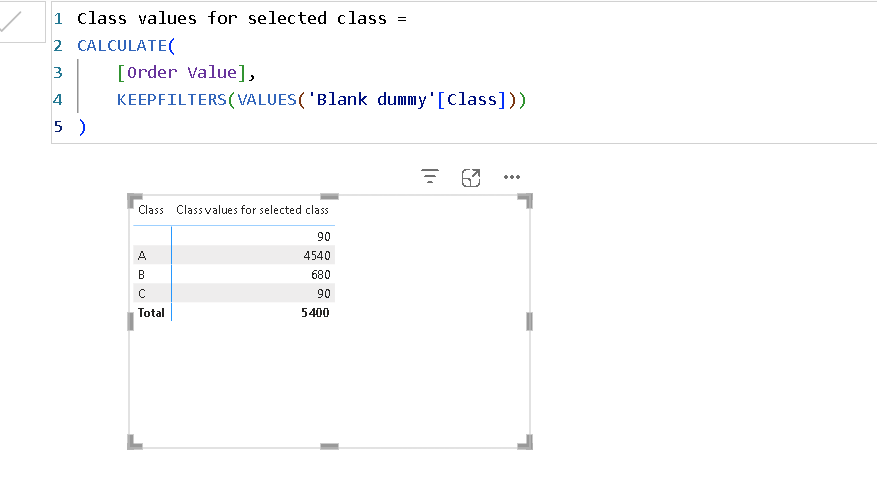
Isn't that amazing?? Let's discuss one more use case that can be tackled with Values. The idea is to get the order value for the selected class. For the demo, we will be visualising in a matrix. First, DAX will give you the correct results, but if you have understood the basics of filter, all, and keep filters, you will definitely go for the optimised version of DAX. If you want to know more about Keepfilters function, here is a quick read.
With the dirty version of DAX, we are using the ALL function unnecessarily, but why? We are removing the filters from Blank dummy table and then reapplying them only for the Class with the use of In Values. Hence, we opt for the optimised version where we use Keepfilters that allow us to keep the current filter, and In Values can help to add a filter condition for the class.
Dirty version
CALCULATE(
    [Order Value],
    FILTER(
        ALL('Blank dummy'),
        'Blank dummy'[Class] IN VALUES('Blank dummy'[Class])
    )
)
Optimized version
CALCULATE(
    [Order Value],
    KEEPFILTERS(VALUES('Blank dummy'[Class]))
)
Protip: There is a subtle difference between the Values and Distinct. Values and Distinct can return the same results if you have no blank rows, but if you have blank rows, Values will consider the blank rows in the result, while Distinct removes the blank rows. But there's a catch with Distinct.
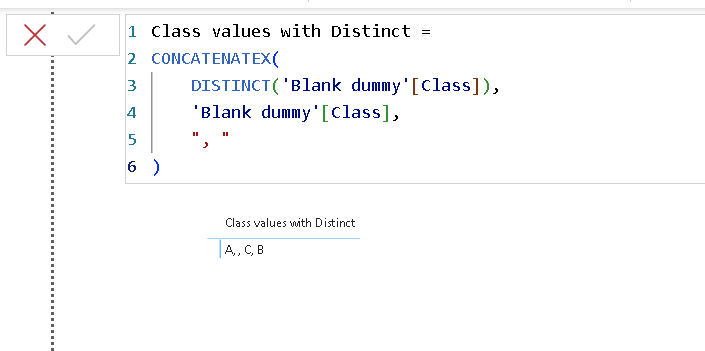
What catch? We will see this with the use case of Distinct. Okay, let's start with a similar case as we tried with Values. If you closely notice, we are getting the same result that we got with Values, but why? Doesn't Distinct function as the default to remove the blank rows?
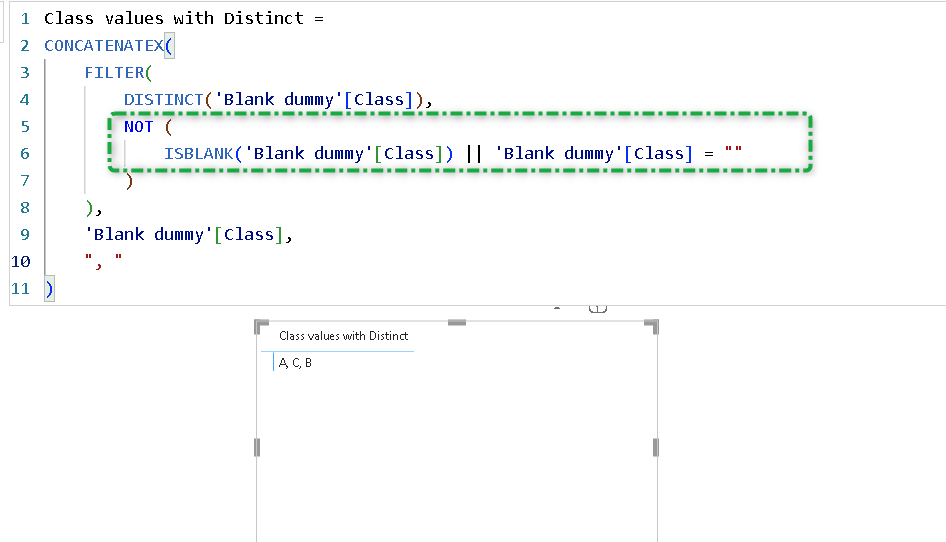
Here's the catch with the Distinct function, and I would say a golden rule to use Distinct. In this case, we are using Distinct inside the ConcatenateX. Distinct is removing the blanks, but ConcatenateX is not allowing them to remove. We need to specify in this scenario with the help of the Not function.
Class values with Distinct =
CONCATENATEX(
    DISTINCT('Blank dummy'[Class]),
    'Blank dummy'[Class],
    ", "
)
Class values with Distinct =
CONCATENATEX(
    FILTER(
        DISTINCT('Blank dummy'[Class]),
        NOT (
            ISBLANK('Blank dummy'[Class]) || 'Blank dummy'[Class] = ""
        )
    )
Let's wrap today's intense blog with a lighter note. We will see how Value can be used in a practical use case. Wait what? Didn't we start with Values? Value and Values are 2 different functions in the DAX world, and they serve a different purpose altogether.
Value allows you to convert a text to a numeric data type. Why can't I change directly in the query editor? Is this needed? Yes, you can easily change the data type in the query editor, but this would mean you are making this change before you load the data in the data model. But there are instances where you just need to convert a text column to a numeric column inside a measure.
We have added another column with customer class stored in a text data type by just adding "" to the customer class. Now, we will try to convert this text customer class to a numeric value. For this, we are creating a calculated column and using Value.
Order Value in numeric = VALUE('Blank dummy'[Order Value text])
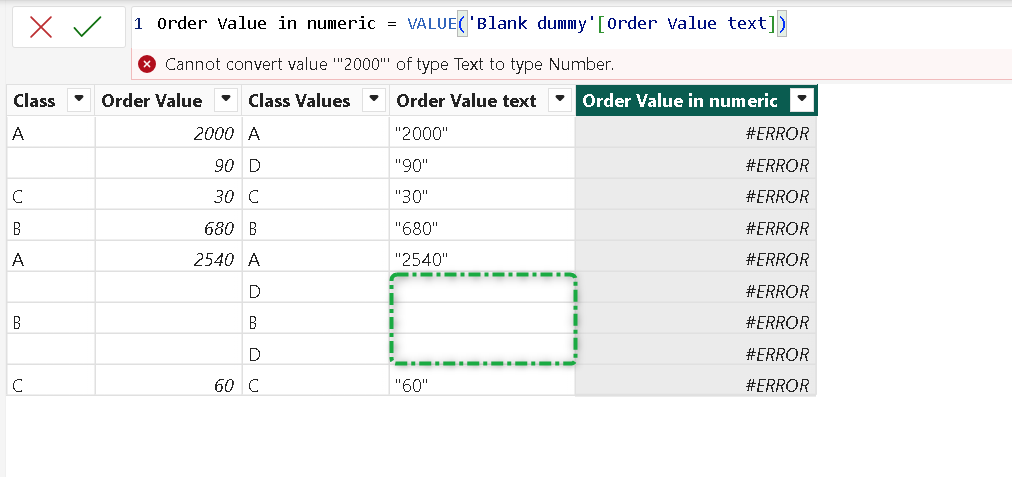
Ah, not again! Another error! Okay, this is a common error. We are using the Value function with an empty string. If your column contains non-numeric text such as
- "N/A",
- Empty String "",
- with currency symbols "$ 2000 and
- last your values have a comma or decimal in between "2,000.00"
In all such scenarios, Value will return an error. You can try correcting by using this DAX, but if it still gives an error, then we need to check this table in the source itself.
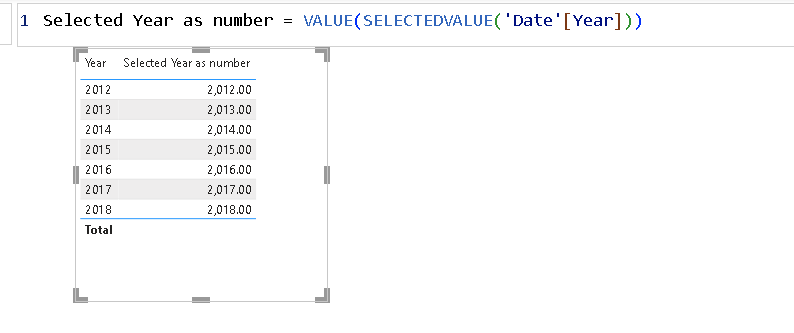
There are many instances in practical scenarios where I have seen a BI developer use Value to convert a Year field from a date table as a decimal. This is unnecessary if your year is already an integer, then why do you need a decimal value for the same?
Order Value in Numeric =
IF (
    'Blank dummy'[Order Value text] <> "",
    VALUE('Blank dummy'[Order Value text]),
    BLANK()
Subscribe
One practical Power BI tip per week. No spam.
Comments
Prefer not to sign in? Share your thoughts on LinkedIn I reply fastest there.